
Revline DDU
Turn your smartphone into a racing dashboard for Gran Turismo 7 on PS5 — gear, RPM lights, lap times, delta, tires and fuel, live at 60 fps.
Now supports Gran Turismo 7 · more games coming
iPhone: iOS 17 or later · Android: 13 or laterUpdates ahead
Revline DDU is just getting started. Gran Turismo 7 is the first supported game, and the app will keep growing with regular updates.
More games
Support for more racing games is planned, so one app can be your dash across the sims you play.
More DDU designs
New dashboard designs will keep coming — from real-car style displays to minimal, race-focused layouts.
Always improving
Readability, connection and features are refined continuously, based on how drivers actually use it.
Have a game or a dash design you want to see? Tell us — feedback shapes what comes next.
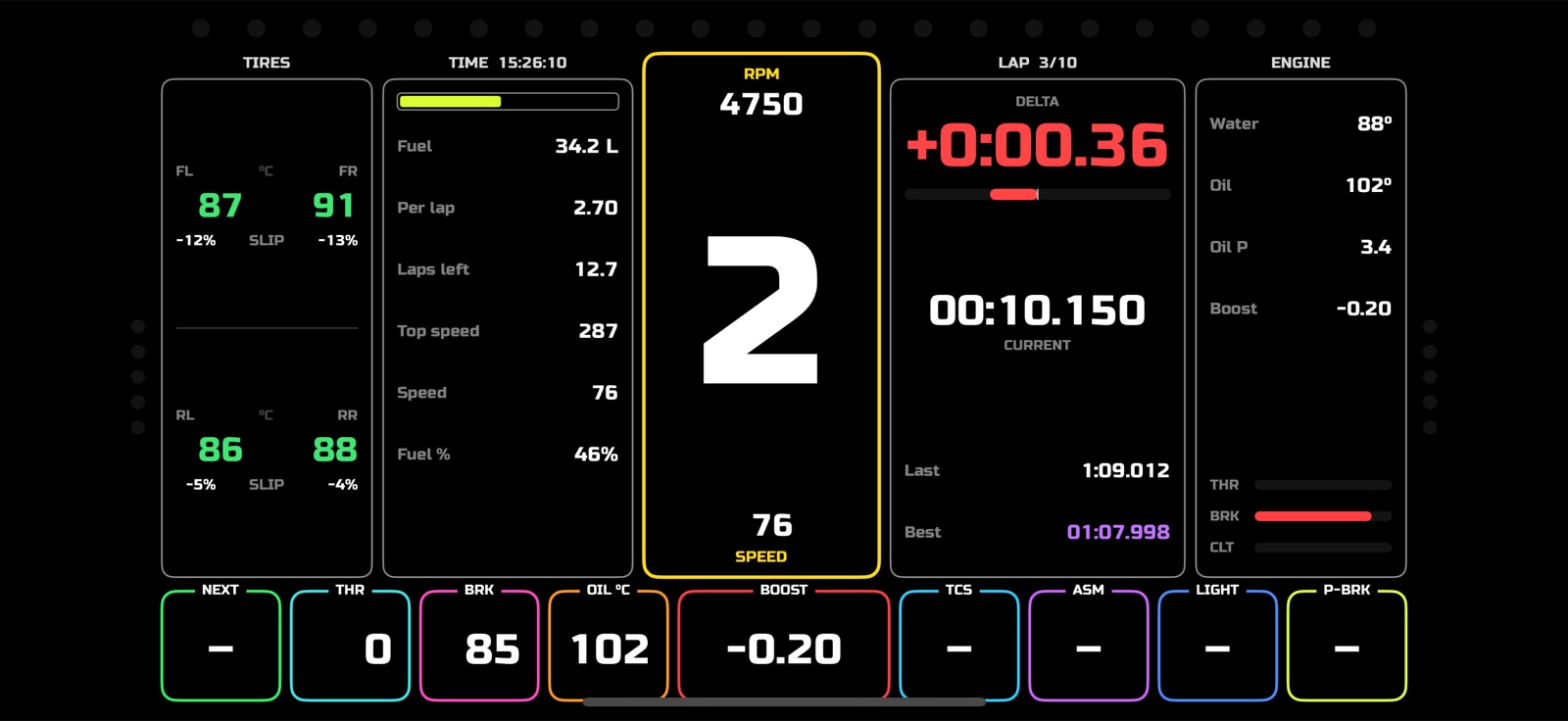
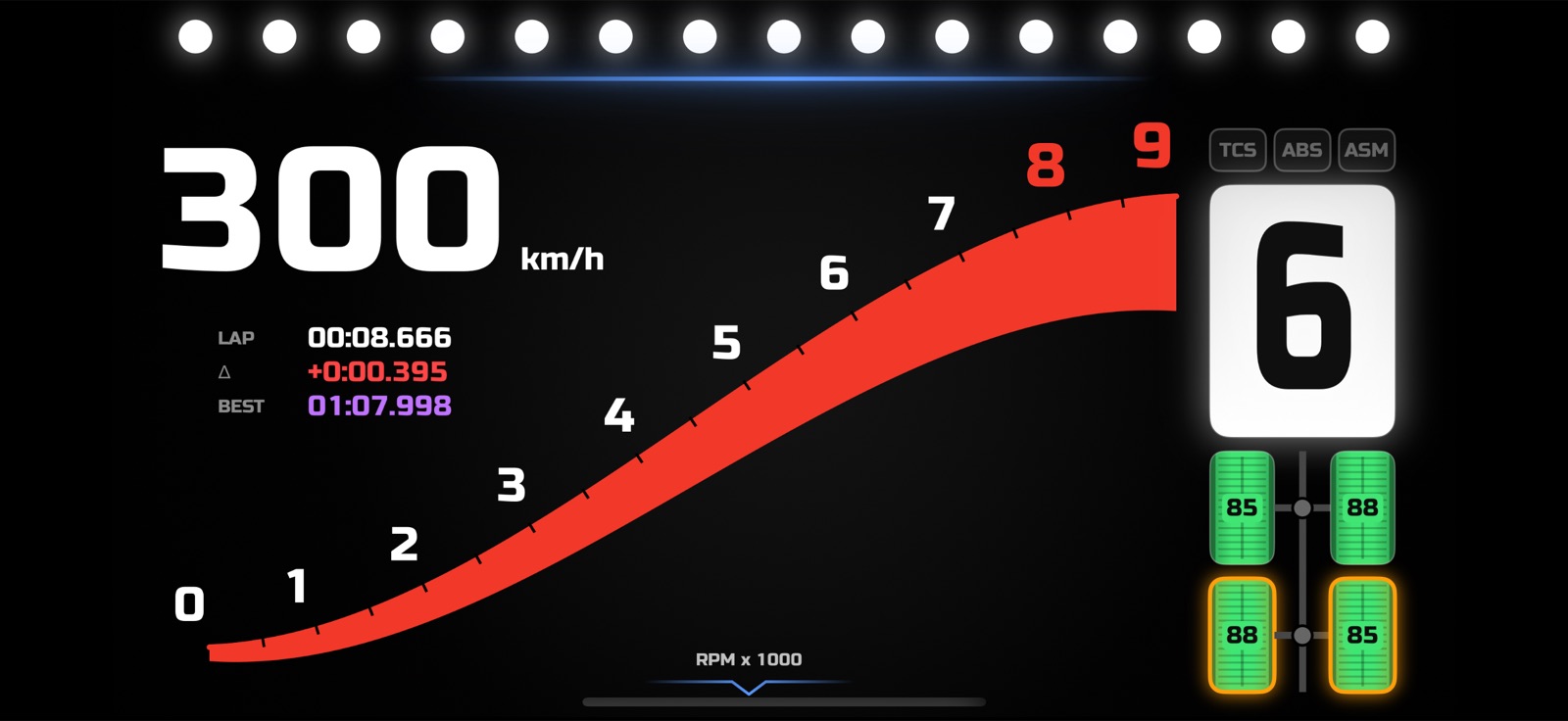
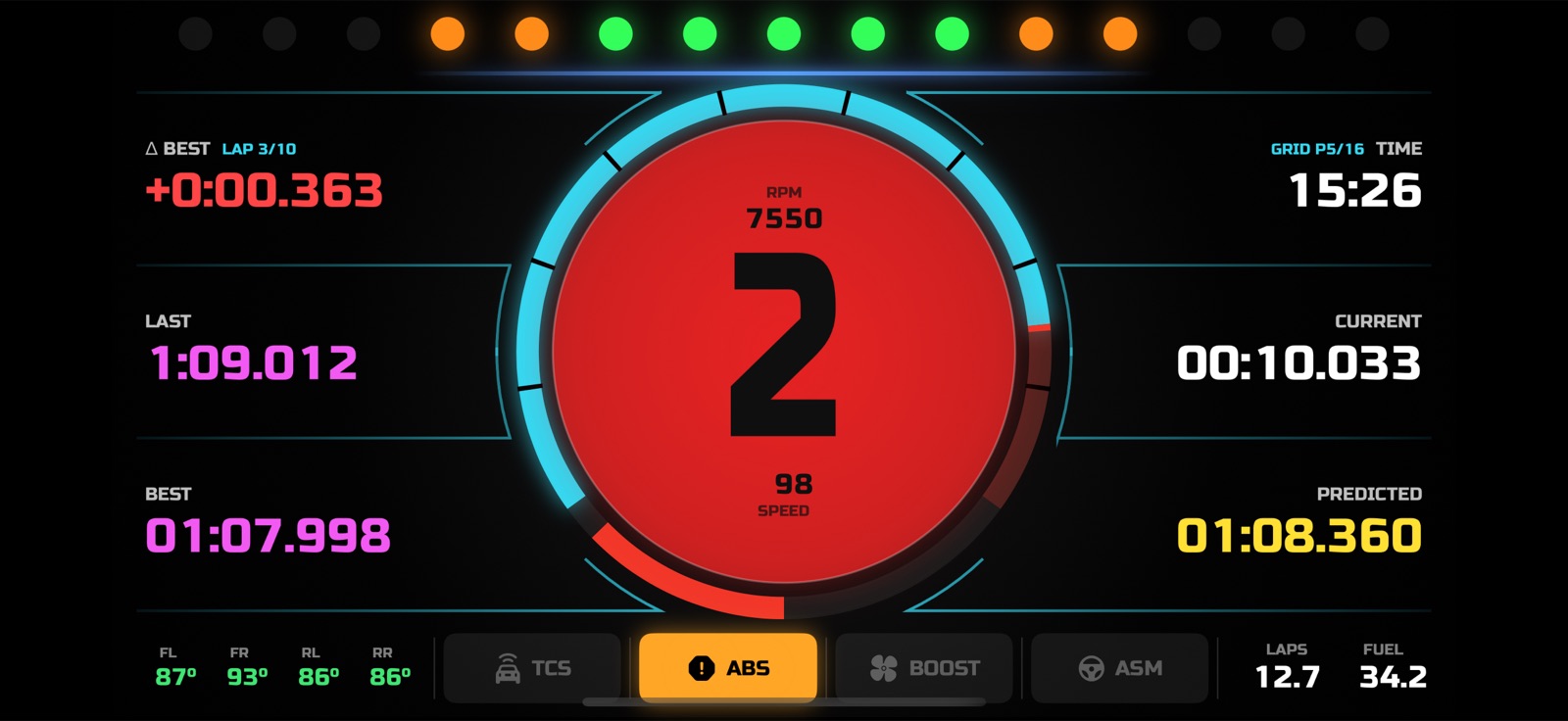
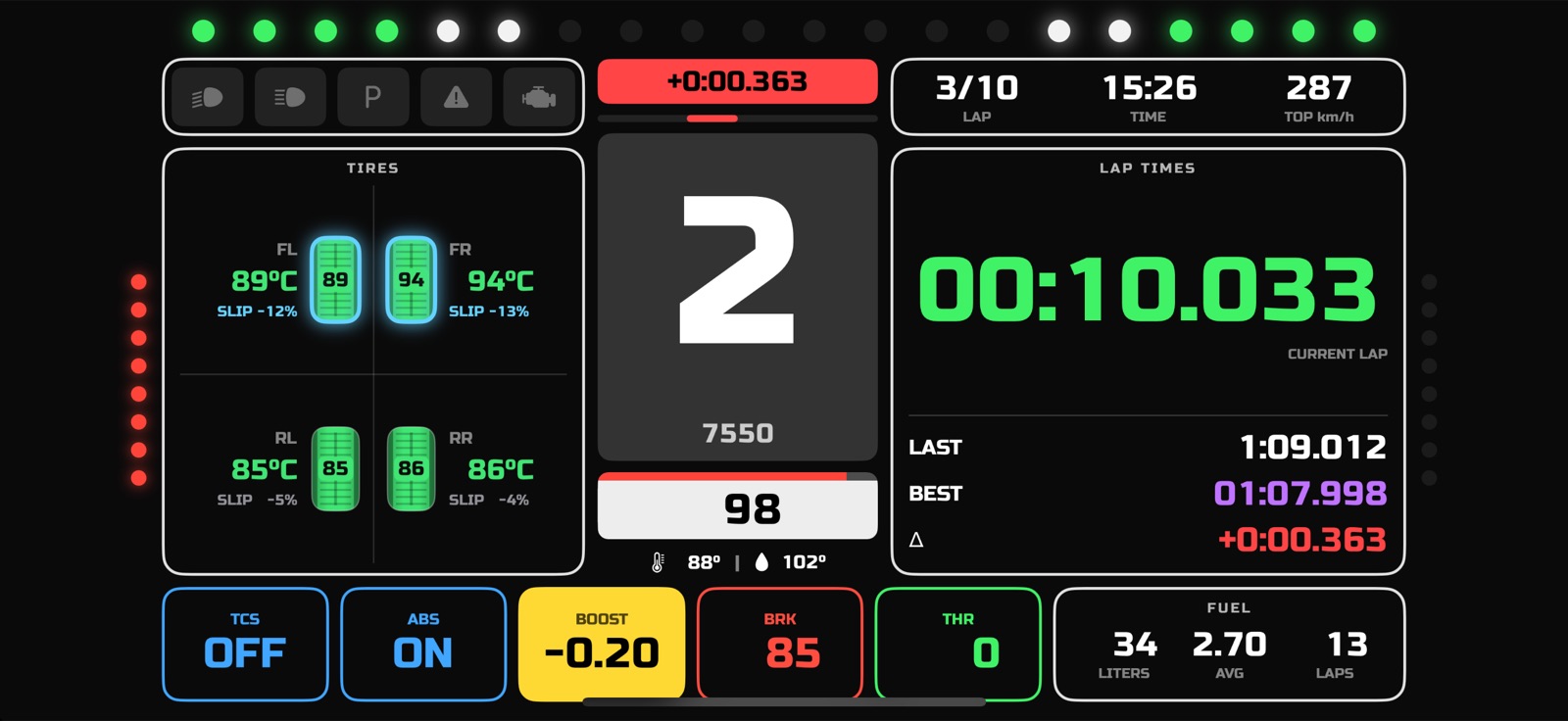
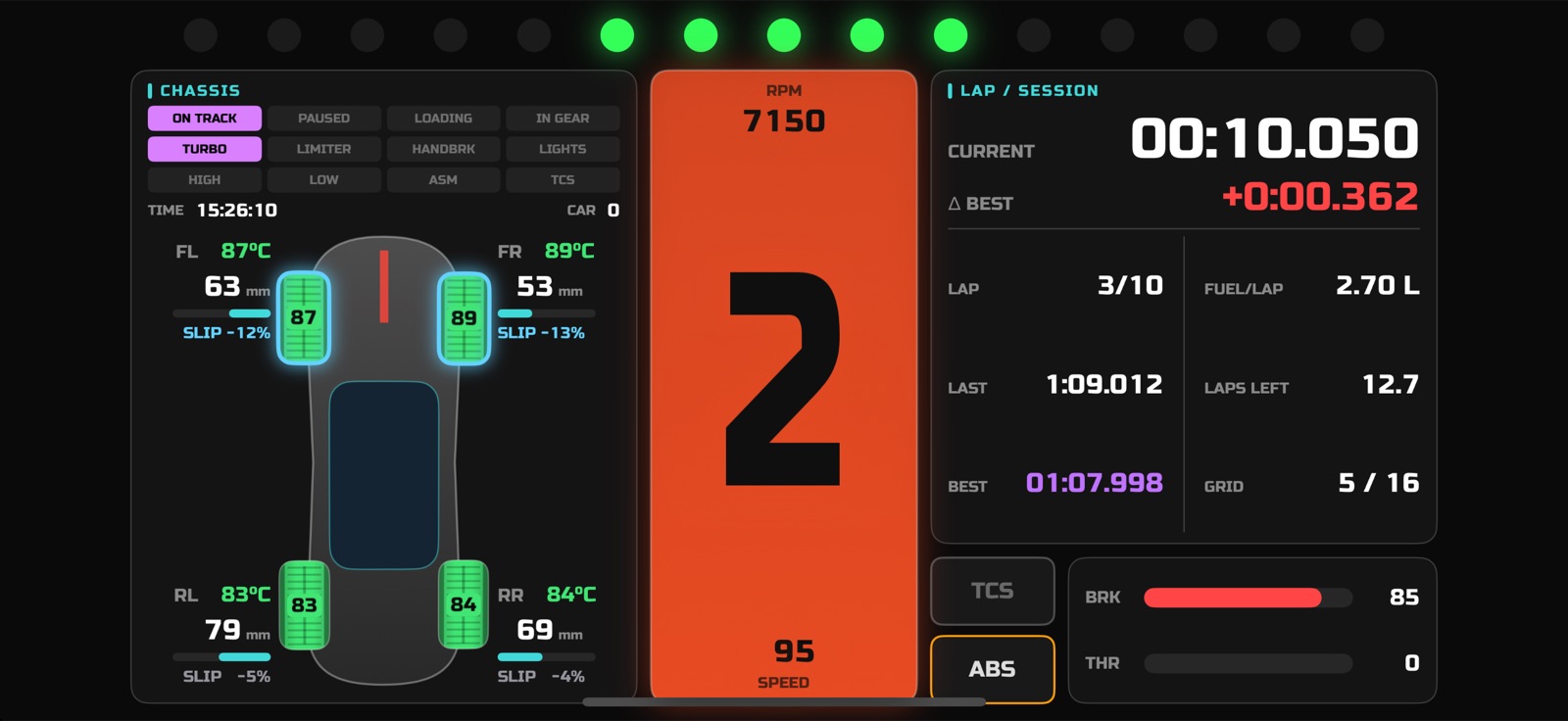
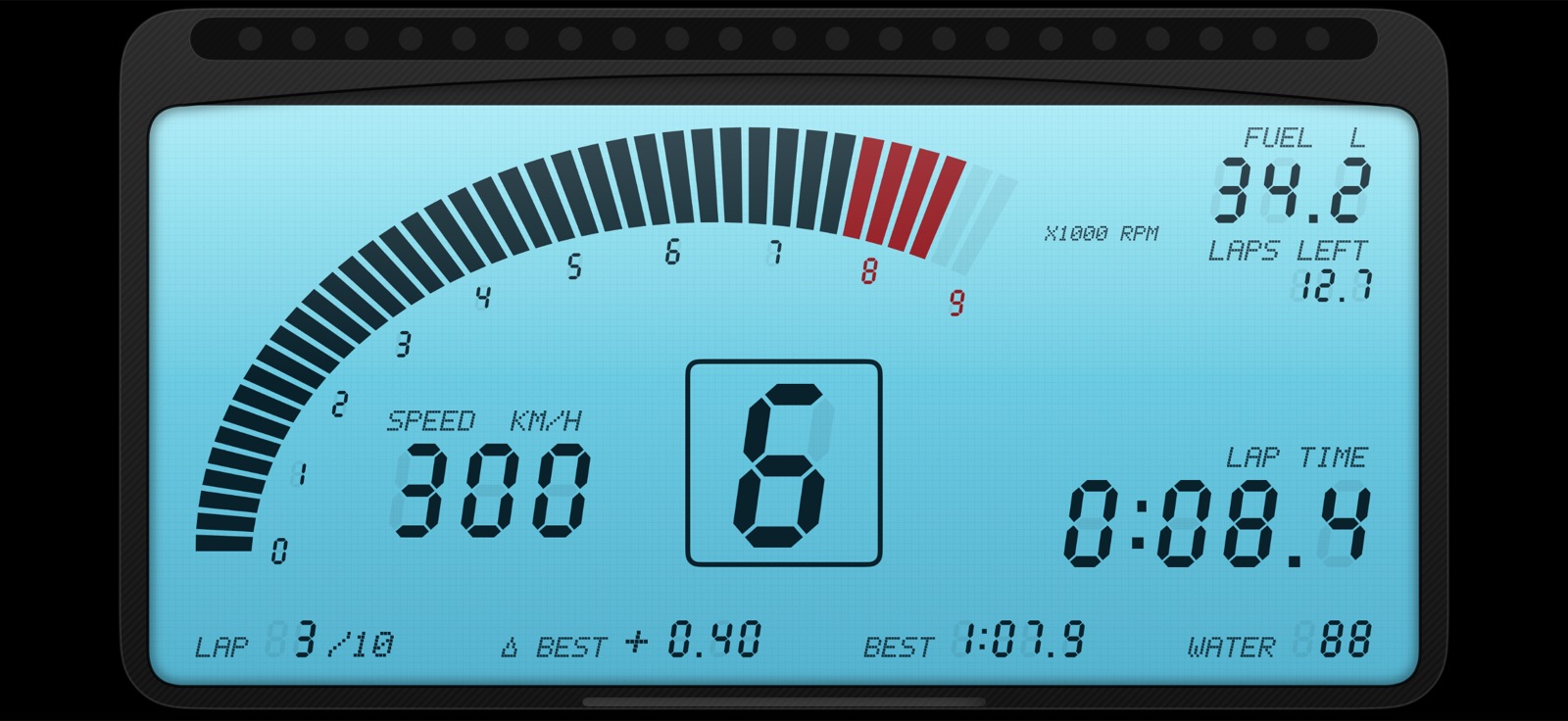
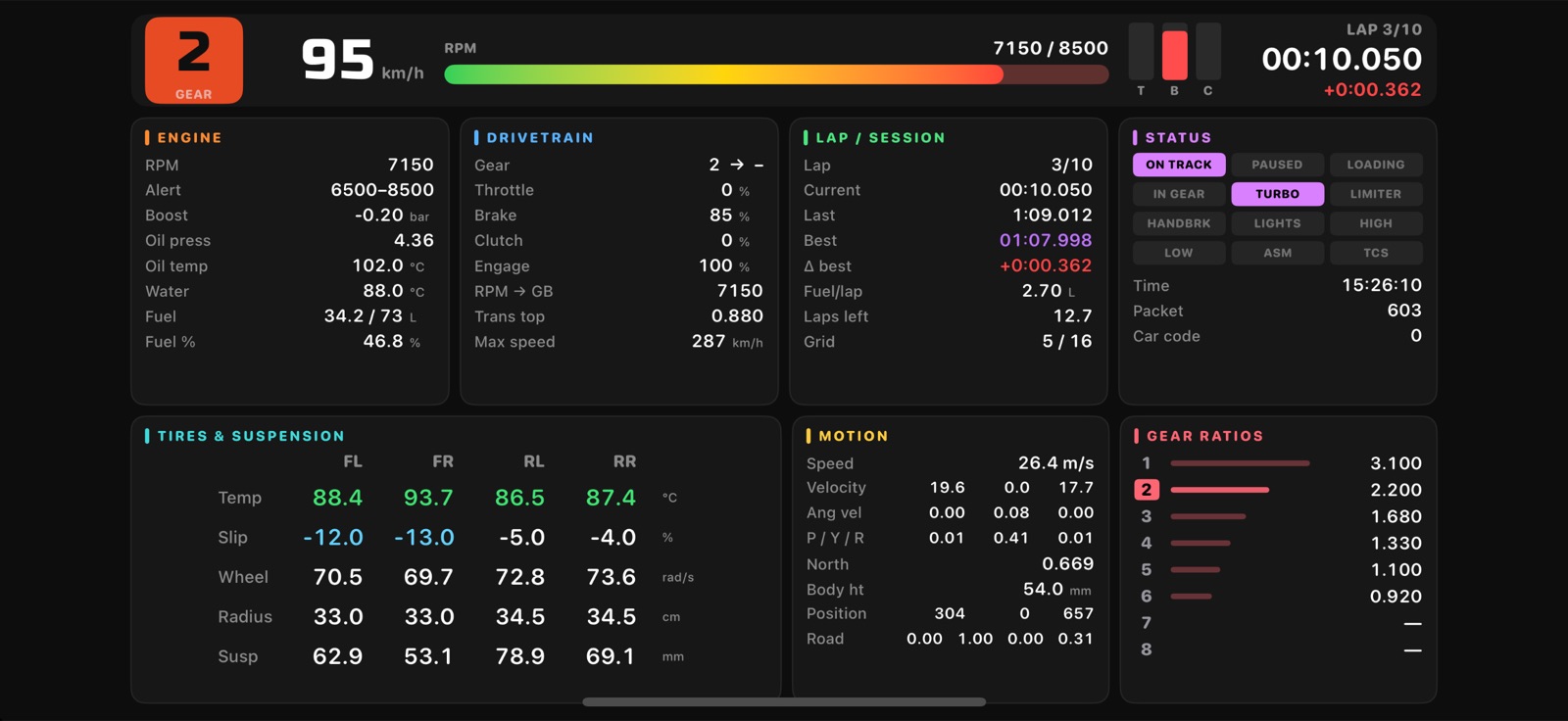
Seven dash designs
Swipe left or right on the dashboard to switch designs at any time. Every number keeps its place as values change, so it is easy to read at a glance.
Features
Everything runs on your smartphone over your home Wi-Fi. No account, no sign-in, nothing sent to the internet.
Finds your PS5
Searches your Wi-Fi for the PS5 and remembers it, so next time it connects straight away. You can also enter the IP yourself.
Shift lights
LED rail that fills towards the rev limit and flashes at full RPM, timed to GT7's own shift points.
Lap times & delta
Current, last and best lap with a live delta to your best, plus fuel per lap and laps of fuel left.
Tires & car state
Tire temperatures, wheel slip, suspension, oil and water temperature, boost, TCS and ASM status.
Zoom & clean screen
Pinch to use the whole screen. Hide the settings button so only the dash is visible.
Data forwarding
Optionally pass the data on to SimHub or motion software on your PC. 11 languages supported.
About the data
Most values come straight from Gran Turismo 7 — speed, RPM, gear, pedals, temperatures, fuel, suspension, last and best lap times, TCS and ASM. A few values are not sent by GT7, so the app calculates or estimates them. These can differ slightly from what you see in the game.
- Current lap time — counted by the app from GT7's data frames. It starts once you cross the start line with the app running and may differ slightly from the in-game timer.
- Delta to best — compared against the fastest lap the app has seen. A best lap set before the app was opened can't be used as the reference.
- ABS — GT7 does not report ABS, so it is estimated from wheel lock-up under braking. It may flash more or less often than the in-game indicator.
- Fuel per lap, laps of fuel left, predicted lap — averages and estimates based on your recent laps.
- Body roll and pitch (Chassis design) — approximated from suspension travel and exaggerated so the movement is visible.
How to use
The first time you open the app, a short connection guide walks you through these steps.
-
Use the same Wi-Fi as your PS5
Connect your smartphone and PS5 to the same router. On iPhone, when iOS asks for Local Network access, tap Allow — the app needs it to talk to the PS5.
-
Start a race in Gran Turismo 7
Launch GT7 and start a race or time trial. The PS5 only sends data while you are driving.
-
Find your PS5
Tap Find PS5 automatically. The app searches your Wi-Fi for up to 30 seconds and saves the PS5's address. If it is not found, enter the IP manually. You can see it on the PS5 under Settings › Network › Connection Status › View Connection Status.
-
Drive
Mount your smartphone in landscape and race. The screen stays on while the app is open.
FAQ & support
Can't connect, or have a question? Check these first.
The app can't find my PS5
- Make sure a race is actually running in GT7 — menus and replays don't send data.
- Check that the smartphone and PS5 are on the same Wi-Fi network (not a guest network).
- On iPhone, make sure Local Network access is on: Settings › Privacy & Security › Local Network › Revline DDU.
- Enter the PS5's IP manually in the app's settings and tap Apply.
Do I need an account or an internet connection?
No. The app only talks to your PS5 on your own Wi-Fi. There is no account, no sign-in and no server.
Can I try it without a PS5?
Yes. Turn on Demo mode in settings to see every design with sample driving data.
Can two devices show the dash at the same time?
Yes. Each device asks the PS5 for data separately, so you can run two phones or tablets on the same Wi-Fi.
What is the small number next to the gear?
The gear GT7 suggests for the next corner. It is off by default — turn on Show suggested gear in settings.
Why isn't my race position shown?
GT7 does not include the live race position in its data, only the starting grid position. See About the data for values the app calculates or estimates.
How do I use it with SimHub or motion software?
Turn on Advanced features (forwarding) in settings and add your PC's IP. In that software, enter your smartphone's IP instead of the PS5's and keep port 33740.
Contact
Questions, bug reports or ideas: ooeeda@gmail.com